Automating All the Things with FinalBuilder
18 lessons 1 h 36 min 5 sections
Start course Watch on YouTube playlist (external link, opens in new tab)
Readable, Maintainable Automation Scripts with FinalBuilder on Windows
About this course
Roy Osherove teaches automation with FinalBuilder (external link, opens in new tab), a commercial tool he is not affiliated with, and explains why he prefers its visual, readable scripts and its more than a thousand built-in actions to PowerShell or batch files and to the built-in actions of CI servers. After a tour of the FinalBuilder IDE, the course builds a script that runs relative to its project's location and adds variables, file iterators, appending to variables, the debugger, downloading web pages and typed variables. It then covers action lists and action groups, global and local error handling with try catch and try finally, async action groups, invoking other FinalBuilder projects, action properties and action scripts, and running FinalBuilder from MSBuild, TFS or TeamCity.
Curriculum
Section 1
Introduction
The introduction explains why Roy Osherove uses FinalBuilder rather than PowerShell or batch files or the built-in actions of CI servers: its scripts are visual and readable, they can be versioned with the application, and it has more than a thousand built-in actions. It then tours the FinalBuilder IDE, from the action categories and the project structure to the build log, the action descriptions and break points.
-
 Why FinalBuilder? Duration 9:34
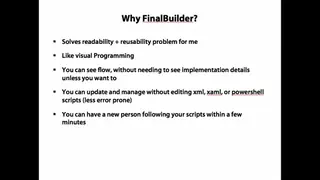
Roy Osherove introduces FinalBuilder, a commercial tool he is not affiliated with, and explains why he prefers it to MSBuild, PowerShell or batch files, whose scripts become hard to read and maintain and end up scattered, and finds Visual Build less usable. He likes that it shows the flow of a script visually without the internal details, that scripts can be debugged and that a new person can start changing a build within minutes, and that it has more than a thousand built-in actions, where CI servers have far fewer and their steps are not versioned with the application. He describes where he has found it useful, from compiling and complicated deployments to setting up machines with all their dependencies, letting testers automate installations and UI steps, asking questions in interactive dialogs and sharing custom actions across an organization.
-
 Getting Around FinalBuilder (Demo) Duration 15:02
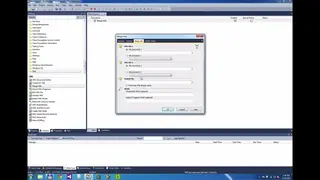
Roy Osherove tours the FinalBuilder IDE: the main and on failure tabs of a project, the action categories on the left, from .NET tools, Amazon EC2 and databases to file sets, flow control, GUI automation, interactive questions, iterators and XML, and the search for actions such as running a DOS command or a PowerShell script. He creates a first one-action project that runs echo hello world, fixes the error it reports, and shows the build log, the editable action descriptions that keep scripts readable, a break point with the watch window, and the FinalBuilder Action Studio, which creates packages of actions.
Section 2
Iterations and Variables
This section builds a first FinalBuilder script that always runs relative to the project's location and uses variables, including macro variables made of other variables, to avoid repetition. It then iterates over a file set to gather the content of several files, appends to a variable in memory, steps through the script in the debugger, downloads a web page whose percent signs must not be expanded, and shows that string variables are faster than variants.
-
 The First Script - Relativity and Variables Duration 10:50
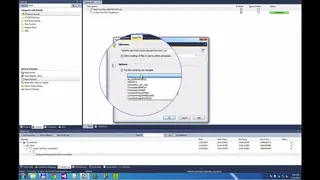
Roy Osherove builds a first FinalBuilder project that creates a text file and replaces a placeholder in it with the contents of another file, read into a project variable. He uses the built-in FB project directory variable so that the script always runs relative to where the project is, and refactors the repeated folder name into a generation directory variable, whose value can also be changed from the command line.
-
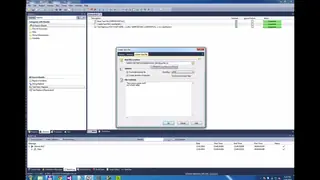 Variables that Contain Variables Duration 2:54
Roy Osherove avoids repeating the same path by creating a full path generation directory variable whose default value is made up of two other variables. He makes it a macro, so that it expands the variable references inside it every time it is used, which gives a hierarchy of variables.
-
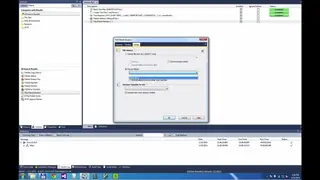 Iterating over Files Duration 8:26
Roy Osherove gathers the content of several input files into one file with a loop: he defines a file set of the files that start with important and end with .txt, and a file set iterator puts each file name in a variable. The actions he moves under the iterator read each file and append its content to the new file, and he notes that a naming convention for the variables would help. After he replaces the placeholder with an empty string, the result still starts with an empty line.
-
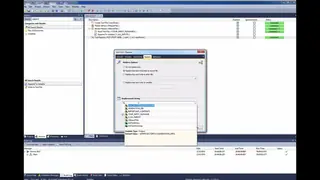 Fixing the Empty Line - Appending To Variables Duration 2:45
To remove the empty line, Roy Osherove appends the content of each file, with a new line, to a variable named with a v prefix, and replaces the placeholder with that variable once, after the loop. He notes that the script runs a bit slowly, partly because of the virtual machine it runs on and, he guesses, because FinalBuilder also saves the variables to files, but that it is fast enough for the purpose.
-
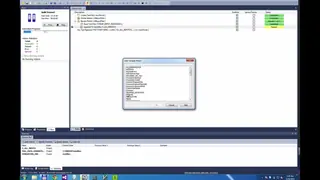 Using the Debugger Duration 2:59
Roy Osherove puts a break point inside the iteration and, in the stopped state, adds watches for the variable that collects the inputs, the full path and the current input file name. He steps through the actions with F10 and watches the values change, which makes complicated scripts easier to debug.
-
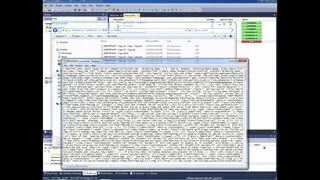 Downloading a Web Page & Using Literal Variables Duration 3:00
Roy Osherove takes the input from the web with an HTTP get file action that accepts redirects and saves cnn.com to a file. The replacement then fails with could not expand replacement string, because FinalBuilder tries to expand the percent signs in the downloaded HTML as variables, and an exclamation mark before the variable name tells it to read the value without parsing it.
-
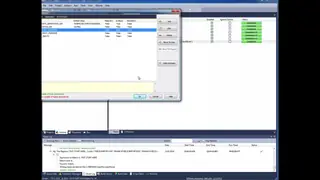 Making Variable Access Faster with Typing Duration 1:01
Roy Osherove shows that the types of variables matter for speed: when the content is put into string variables instead of variants, FinalBuilder does not have to figure out what the content is, and access to the variables is usually much faster.
Section 3
Flow Control & Error Handling
This section makes scripts reusable with action lists, which are functions with parameters, and action groups, and it handles errors globally in the on failure tab, which exports the log, and locally with try catch and try finally actions. It also speeds up the downloads with async action groups and runs another FinalBuilder project from within a project.
-
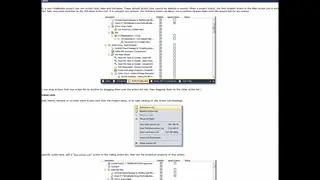 Reusable Action Lists and Action Groups Duration 5:18
To download several websites without copying actions, Roy Osherove extracts the download action into an action list, a function with a URL string parameter, and calls it with run action list actions for cnn.com and google.com, which he renames with F2 to make them more readable. He wraps the calls in an action group, a hierarchical placeholder for several actions, and notes that action lists let him maintain things in one place and see what the script does rather than how it does it.
-
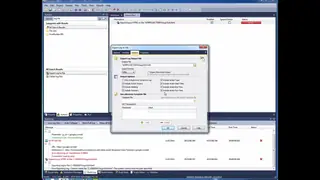 Global Error Handling Duration 4:46
Roy Osherove uses the on failure tab, the global error handler, to export the FinalBuilder log to an HTML file in a logs folder when anything fails. The first run cannot export the log because the folder does not exist, so he adds a create directory action before the export, and he shows how a send email action can attach the log file.
-
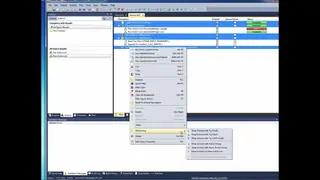 Local Error Handling: Try-Catch-Finally Blocks Duration 7:42
Roy Osherove lets a script continue after an error, either with ignore failure on an action or with the try catch and try finally actions of the flow control category, so that a failed download of one page does not stop the others. He extracts the failure handling that he repeated into an action list called from both the catch and on failure, renames it export logs so that the logs are exported no matter what, and discusses grouping the main logic into its own action list or action group.
-
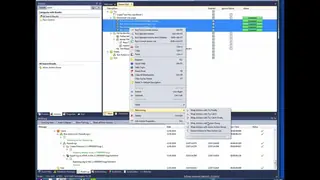 Speed Things Up with Parallel Async Actions Duration 3:30
Roy Osherove downloads several pages at the same time by wrapping the download actions in an async action group, which runs its child actions in multiple threads, with a maximum number of concurrent threads and an optional delay between thread starts. The group is also a sync point, as the action after it starts only when all of its actions finish, and he warns against async action groups for actions that change the same IO or write to the same variable, because of race conditions.
-
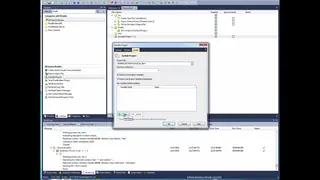 Invoking Other FinalBuilder Projects Duration 3:08
Roy Osherove reuses a whole project by including the calculator UI testing demo project that comes with FinalBuilder in his own project with an include project action, which can also send variables to it and shares the host and environment variables. Once he puts it inside the try, the calculator tests run after the downloads, and their full log is included in the project's own build log.
Section 4
Advanced Customization
This section covers the general and runtime properties of actions, such as retries, log output, output monitors and run conditions, and scripts in JavaScript, PowerShell, Python or VBScript that run while an action executes.
-
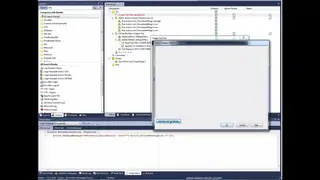 Useful General and Runtime Action Properties Duration 3:47
Roy Osherove goes through the properties of an action: the general tab sets its description, a color and comments, and the runtime tab can enable or disable it, ignore failure, pause after it, retry it when it fails and, for some actions, set a timeout. He also shows how to hide an action's output from the log, for example when it sets passwords, and output monitors, which fail an action when its output contains, or does not contain, a given string, which helps with processes that do not return a nonzero code on failure. Some actions can run as a different user, and a script in JavaScript, Python or PowerShell can set a condition under which the action runs.
-
 Custom Action Scripts in Powershell & Javascript Duration 1:22
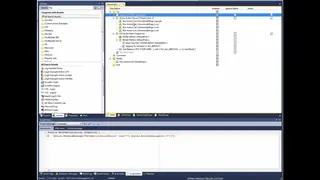
Roy Osherove shows a relatively unknown feature of FinalBuilder: every action has a script editor, where scripts in JavaScript, PowerShell, Python or VBScript run while the action executes and can use objects such as the action itself. He used it to change the TeamCity status on each action he cared about, by sending log messages in a specific format, but notes that it is usually not recommended because these scripts are relatively hidden.
Section 5
Orchestrating FinalBuilder with a CI System
This section shows how to run FinalBuilder from MSBuild or TFS, with the example MSBuild project that comes with FinalBuilder, and from TeamCity, with a build step that calls the FinalBuilder command line on a project kept in source control.
-
 Invoking FinalBuilder from TFS/MSBuild Duration 1:22
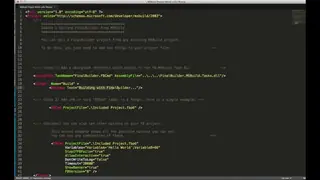
Roy Osherove shows the example that comes with FinalBuilder for running it from MSBuild or TFS: an MSBuild project file uses a task from a DLL included with FinalBuilder to invoke FBCmd.exe with the path of the project file, and can set more properties such as variables. Environment variables are also included in the project by default, so more settings can be passed that way.
-
 Invoking FinalBuilder From TeamCity Duration 8:20
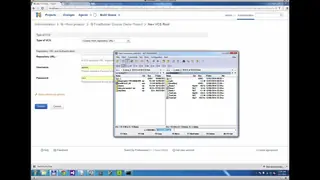
Roy Osherove runs a FinalBuilder script from TeamCity: he puts the demo folder in a git repository, with the FinalBuilder zip file (FBZ) at its root so that the build does not need to know the structure of the application, and creates a TeamCity project with a VCS root that points to it. A build configuration with a PowerShell build step calls FBCmd.exe on the agent with the project file as the parameter, after he disables the calculator UI test, because UI tests cannot run from the command line. He shows that variables can be passed on the command line, which overrides their hard-coded values, or as TeamCity parameters of the environment variable type, which never override a local FinalBuilder variable, so he finds the command line safer.