Vim Hates You
26 lessons 2 h 16 min 5 sections
Start course Watch on YouTube playlist (external link, opens in new tab)
Teach Vim to love again
About this course
Roy Osherove explains why he thinks Vim (external link, opens in new tab) is worth learning and then teaches it in short screencasts, starting with opening and saving files, moving around and changing text (external link, opens in new tab), modes, copying and pasting, searching and replacing, and setting up a vimrc file. Later sections cover windows and tabs, plugins installed with vim-plug such as Vim Airline, NERDTree, Ctrl-P and ag.vim, and ways to go faster with key mappings, leader keys, registers, the system clipboard, abbreviations and macros.
Curriculum
Section 1
Get some context
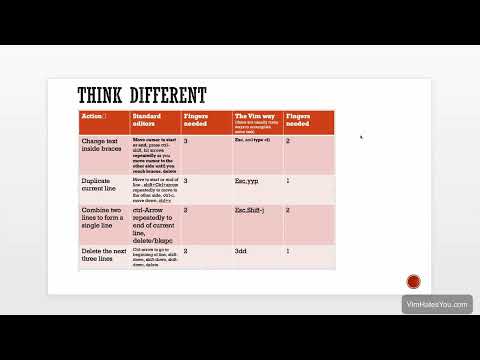
This section explains why Roy Osherove thinks Vim is worth learning: like regular expressions, it brings a way of thinking about text as motions, commands and operators. It compares edits made in a standard editor with short Vim keystrokes, and mentions Vim bindings in other editors and the comparison with Emacs.
- Why Vim? Duration 8:46
Roy Osherove explains why he thinks Vim is worth learning by comparing it to regular expressions: it brings a different way of thinking about text as motions, commands and operators, such as delete three words back. He compares common edits in a standard editor with Vim keystrokes, such as c, i and a brace to change inside braces, yy and p to duplicate a line, Shift-J to join lines and 3dd to delete three lines. He also notes that Eclipse and Visual Studio have plugins for Vim bindings, and describes Emacs as a powerful editor built on chord-like shortcuts.
Section 2
Get Somewhat productive in an hour or so
This section covers opening, saving and quitting files, moving around and changing text, yanking and pasting, and Vim's normal, insert and three selection modes. It sets up a vimrc file with syntax highlighting, line numbers, automatic indentation and color schemes, including one cloned from GitHub. It also covers searching, search and replace with regular expressions, a walk through the ViEmu cheat sheet and vi bindings in Bash and Zsh.
- Vim file open save, load, moving, changing and selecting text Duration 7:04
Starting Vim from the command line, Roy writes a hello world file in insert mode, saves it with a colon, w and a file name, and quits with a colon and q, or writes and quits with wq. In what he calls navigation mode he adds lines with o and Shift-O, moves with h, j, k and l and by words with b and w, and undoes with u. He changes text by selecting it with v or Shift-V and pressing c, or with cw and ciw for change word and change in word.
- Copying, Pasting and Yanking in Vim Duration 3:30
Roy explains that Vim calls copying yanking, done with y, and pastes with p after the cursor or Shift-P before it, whether the yank is a visual selection, several lines selected with Shift-V or a whole line. He shows gp, which leaves the cursor just after the pasted text, yanking a word with a motion (yank in word), copying the whole page with Shift-G, Shift-V, gg and y, and copying columns in Ctrl-V column selection mode. Registers are left for a separate video.
- Syntax Highlighting and Numbering in .vimrc file Duration 2:41
Working on a new index.html file, Roy turns on Vim's built-in syntax highlighting with syntax enable and line numbers with set number. Because these settings are lost when Vim is reopened, he creates a vimrc file in his home folder with both commands so that they load by default. He ends by pointing ahead to color schemes and the .vim directory.
- Basic Searching inside a file in VIM Duration 2:42
Roy searches inside a file by typing a forward slash and the text, then pressing n to go to the next match; the search is case sensitive by default and wraps around. He turns on incsearch to highlight the search while typing and hlsearch to highlight all matches, and removes the highlighting with set nohlsearch. A question mark can also be used to search.
- Indentation Duration 3:31
Roy indents lines of an HTML file by selecting them with Shift-V and pressing the greater-than sign, de-indents them with the less-than sign, and repeats the last action with the dot key. For automatic indentation he adds filetype indent on to the vimrc file, so that pressing = on a selection makes Vim detect HTML and indent it. He notes that the indentation settings can be overridden in a special vim directory.
- Understanding Vim Modes and Block Selection Magic Duration 6:13
Roy explains that each Vim mode changes how the keyboard behaves: normal or navigation mode is the default, and insert mode can be entered in several ways, such as i, o, Shift-O and Shift-I. He then shows the three selection modes: v for characters, Shift-V for whole lines and Ctrl-V for block (column) selection. In block selection he changes a column of words with c, inserts text before each line with Shift-I and replaces a selection with r, and each change applies to all the selected lines.
- Color Schemes Duration 6:20
Roy cycles through Vim's built-in color schemes with the color scheme command and Tab, turns on wildmenu to see the options, and makes Zellner the default by adding it to the vimrc file. He points to the Vim Colors site and installs the El Rodeo scheme from GitHub: he creates .vim/colors with mkdir, runs git clone, moves the scheme's colors folder into it and sets the scheme in the vimrc. He also uses Shift-C to change text up to the end of the line.
- Basic Search and Replace in a file Duration 4:41
Roy uses the substitute command, typed as a colon, s, the search pattern and the replacement between forward slashes, to replace text on the current line, and applies it to several lines by selecting them with Shift-V first. Only the first match on each line is replaced unless g for global is added at the end. He also shows a range that covers the whole file and the c flag, which asks for confirmation (yes, no, all or quit) at each match.
- Search and Replace with Regex Duration 3:20
Roy explains that Vim's search and replace is based on regular expressions, and replaces every run of word characters in a file with three underscores, using backslash w for any alphanumeric character, a plus for one or more and the global flag. He points to the vimregex.com site as a reference for character classes and quantifiers. He then replaces all uppercase characters, and after that all runs of non-uppercase characters, with underscores.
- Useful Vim Commands Reference Duration 18:06
Roy walks through the ViEmu Vim cheat sheet: the colors (green for motions, yellow for commands), the commands in red that end in insert mode, and the keys marked with a dot that need a character argument, such as f and t. He covers motions such as w and W, e, zero and dollar, star and hash, and commands that stay in normal mode, such as r, x and the dot command that repeats the last action. He also shows commands that end in insert mode, such as Shift-C, Shift-A and o, and compares typing Vim commands one key after another with Emacs chords.
- Vim Shortcuts in Bash and ZSH Duration 1:36
Roy shows that Bash and Zsh can use vi key bindings to edit the command line, turned on with set -o vi, which can also go in the shell's rc file. After pressing Escape on a long command line he uses b, cw, dd, p, Shift-P and undo to move, change, delete and paste text.
Section 3
Divide & Conquer your windows
This section splits the screen into windows with split and vsplit and moves between them with Ctrl-W, and opens, switches and closes tabs. It then explains that a window is a view into a buffer and that tabs are meant to hold different layouts of windows.
- Multiple Windows Duration 3:07
Roy opens a second file next to the current one with vsplit (split adds a horizontal window instead) and moves between windows with Ctrl-W followed by h, j, k or l. He closes a window with q or keeps only the current one with only. On a Mac he recommends turning Caps Lock into Control under the keyboard settings' modifier keys, so that Control is easier to reach.
- Vim Tabs Duration 2:10
Roy opens a new tab with tabnew, writes a file in it, and moves to the next tab with gt and to the previous one with g and uppercase T; recent versions also accept Ctrl-Page Up and Page Down. He closes a tab with q, opens a file in a new tab by giving tabnew a file name, or uses tabfind, which searches the Vim path. He adds that some people prefer tabs to windows or buffers.
- Tabs as window Layouts Duration 2:25
Roy explains that a tab contains windows and each window is a view into a buffer, so the same file can be open in two tabs at once. He argues that tabs are meant as collections of windows used for layout: in one tab he puts the vimrc and a new file side by side with vsplit, adds a third file with split and moves between them with Ctrl-W. He sums up tabs as a way to lay out buffers or to have different views of the same project.
Section 4
Bring in reinforcements - Plugins
This section installs the vim-plug plugin manager and uses it to add Vim Airline, the NERDTree file explorer and the Ctrl-P fuzzy file finder. The last lesson adds the ag.vim plugin, which searches for text across files with AG (the Silver Searcher) and shows the results in a quickfix window.
- Installing Plugins (Vim plug + Airline) Duration 8:57
Roy points to vimawesome.com for the most used plugins and installs the vim-plug plugin manager by running the curl command from its GitHub page, then declares plugins between its two lines in the vimrc file. He adds Vim Airline and its themes, fixes the word Plugin to Plug, runs PlugInstall, sets laststatus to 2 so that airline is always visible, and picks an airline theme. He also adds comments to the vimrc, which start with a double quote.
- NerdTree in Vim Duration 3:39
Roy installs the NERDTree plugin by copying its line from Vim Awesome into the vimrc file and running the plugin install command. He opens it with NERDTreeToggle, moves between it and the file with Ctrl-W because it is just another window, opens folders and files with o, and shows its help with a question mark, including commands for bookmarks and for creating folders and files. Mapping a key shortcut to the toggle command is left for a later video.
- Ctrl-P Duration 2:47
Roy installs the Ctrl-P plugin, a fuzzy file finder, through the vimrc file and PlugInstall, restarting Vim because it reads the vimrc on load. Pressing Ctrl-P lists the files in all subfolders of the current location, and typing part of a file name finds the file so that Enter opens it. He compares this with browsing in NERDTree and finds a combination of the two useful.
- Find text in multiple files with AG Duration 6:05
Roy compares tools for finding text in many files, grep, vimgrep and Ack, and picks AG (the Silver Searcher), which is designed for programmers who search recursively. After installing AG with brew on a Mac, he adds the ag.vim plugin to his vimrc using his leader mappings and installs it. Searching with ag for the word class opens the results in a quickfix window, from which he opens matches in vertical or horizontal splits, moves between windows with Ctrl-W and closes the quickfix window with ccl.
Section 5
Go Faster
This section maps keys to actions with the non-recursive noremap commands and a leader key, and adds leader mappings that open, save and source the vimrc file. It also covers registers, the system clipboard through the plus register, abbreviations, and recording and replaying macros.
- Mapping keys to actions Duration 8:22
Roy maps the down arrow to dd and p and the up arrow to dd, k and Shift-P with the map command, so that the arrows move the current line. He explains that map and its mode versions imap, nmap and vmap are recursive, so later mappings, including those of plugins, can change what they do, and recommends the non-recursive noremap commands. He then adds to his vimrc a noremap that opens NERDTree with Ctrl-N (ending with CR for Enter) and normal-mode noremap versions of the arrow mappings, and loads them with source.
- Mapping Leaders in Vim Duration 3:57
Roy explains that the leader is a placeholder key, backslash by default, that many plugins use so that their mappings don't clash with existing key bindings, and that it can be changed with let mapleader. He maps the leader pressed twice to NERDTreeToggle and shows that, before the leader is set in the vimrc, the mapping works with two backslashes. He then sets the leader to comma in the vimrc, so two commas open NERDTree.
- Edit and source your .Vimrc faster Duration 4:54
Roy creates two leader mappings to make changing the vimrc faster: leader ev opens the vimrc in a vertical split through a special variable that always points to the vimrc file, and leader wq writes and quits it and then sources it. He tests them by adding a mapping that opens NERDTree when the leader is pressed twice. He also shows that a mapping removed from the vimrc stays in memory until Vim is restarted.
- Understanding Vim Registers Duration 8:37
Roy lists registers with the reg command and pastes from one by typing a double quote, the register name and p, starting with the percent register, which holds the current file name. He shows the double quote register with the last copy or delete, the numbered registers for earlier deletes, the colon register for the last command, named registers such as a that keep a yank, and appending to a register with an uppercase letter. He also covers the black hole, small delete, last search and equals registers, and clearing all registers by removing the viminfo file.
- Vim and the System Clipboard Duration 4:57
Roy checks whether a Vim build supports the system clipboard by looking for the word clipboard in Vim's version output, where grep helps, and a minus sign means it is not supported, as with the built-in Vim on most Macs. He installs MacVim with brew, overriding the system Vim, after which clipboard shows a plus. He then pastes text copied from Hacker News through the plus register (double quote, plus, p) and yanks a line into the system clipboard with double quote, plus, y.
- Abbreviations in Vim Duration 2:25
Roy describes abbreviations as text completions on the fly: he defines one that expands my email into his email address, which could also be kept in the vimrc, and in insert mode it expands as soon as he types a character that is not alphanumeric. He suggests them for long text such as copyright notices and email signatures, or for common spelling mistakes. Unlike a mapping, an abbreviation is only expanded when it is typed outside of another word.
- VIm Macros Duration 5:37
Roy explains that q and a letter start recording a macro into that register, q again stops it, and the @ sign with the letter plays it back, optionally with a count. To build a numbered list he records a macro into n that yanks and pastes a line and increments its number with Ctrl-A, looks at it with the reg command and runs it 10 times with 10@n. He then pastes the macro into the vimrc as a leader mapping, and notes that a count does not work with that mapping.