Commanding Total Commander
15 lessons 59 min 4 sections
Start course Watch on YouTube playlist (external link, opens in new tab)
About this course
Roy Osherove explains why he has used Total Commander, a keyboard-friendly file manager for Windows, for many years, and how working with two panes makes file operations faster. The lessons cover his initial options, moving around, copying, moving and editing files, directory shortcuts and zip files, then selecting, filtering, coloring, searching and renaming many files at once, copy queues, comparing and synchronizing folders, FTP, plugins and splitting large files.
Curriculum
Section 1
Introduction
This section explains why Roy Osherove has used Total Commander, a Windows file manager with its origins in Norton Commander, for over 12 years. It then describes working with two panes, a work pane and a target or viewer pane, so that most file operations go from one pane to the other.
-
 Why Total Commander? Duration 4:30
 Roy Osherove explains why he has used Total Commander on Windows for over 12 years: it is a mature, fully keyboard-friendly file manager with its origins in Norton Commander, with dozens of official plugins for things such as ISO and zip files and FTP, and thousands of unofficial ones. He compares it to Vim or Emacs because it is very extensible, and notes that it can be tried for a long time in shareware mode before paying for it, which he did. He mentions other file managers he tried, such as Salamander and Directory Opus, and warns that once you learn one of these tools it is hard to move to another, and that many of them look nicer than Total Commander.
-
 A Dual Pane State of Mind Duration 3:38
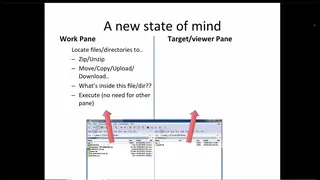
 Roy compares the Windows Explorer way of opening one directory, copying or cutting a file and pasting it into another, with a dual pane file manager, where a work pane and a target or viewer pane are always visible and Tab switches between them. He argues that this is faster because almost all file operations except editing and execution need a location and a different target location. His examples include copying files into a folder or into an existing zip file, uploading or downloading files when the work pane is an FTP folder, and viewing a file's contents, and he mentions extras such as FTP uploads and browsing ISO files.
Section 2
First Steps
This section sets up Total Commander's initial options and covers moving between panes, tabs, folders and the command line, creating, copying, moving, viewing and editing files, and directory shortcuts. The last lesson zips and unzips files, renames them and browses into zip files like folders.
-
 Initial Options Duration 5:55
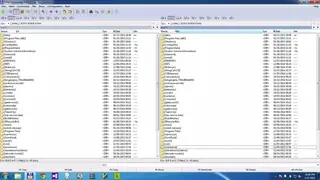
 Roy goes through the configuration options he sets the first time Total Commander opens: drive buttons for each pane, the command line shown and the function key buttons hidden, although he says those buttons are very useful for beginners because they show the shortcuts for the most common file operations. He shows hidden and system files, sorts directories like files so that sorting by date brings back the folder he was working on, sets the Segoe fonts and shows extensions directly after the file name. He also chooses the left mouse button selection mode, big file copy mode to speed up copying large files, and a quick search that highlights any file containing the typed text.
-
 Moving Around, Basic File And Folder Commands Duration 8:29
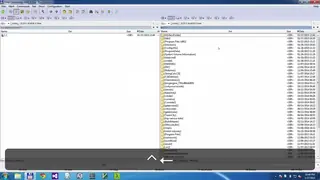
 Roy moves up and down with the arrow keys, uses the right arrow to reach the command line, switches between panes with Tab, and opens, switches and closes tabs with Ctrl-T, Ctrl-Tab and Ctrl-W. Ctrl and the left or right arrow open the highlighted folder in the other pane, Alt and the left arrow go back in the history, and the history is kept between sessions. He creates a folder with F7, copies files and folders with F5 (selecting several with Space or all with Ctrl-A), moves them with F6, and turns the other pane into a viewer with Ctrl-Q. F4 edits a file in Notepad or the default viewer and F3 views it, and the configuration options let you set any viewer or editor you want.
-
 Folder Shortcuts Duration 1:49
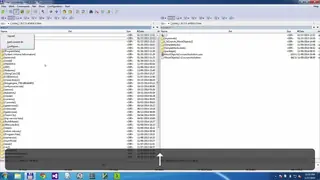
 Roy opens the directory shortcuts menu with Ctrl-D, adds the current directory to it under a name, and marks one letter of the name so that pressing that letter in the menu goes straight to the folder. When a shortcut also saves the target directory, choosing it switches the other pane as well, so the two directories work as a couple.
-
 Renaming and Zipping Duration 3:27
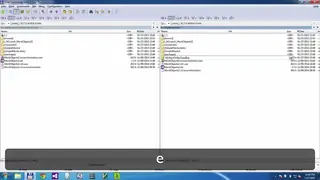
 Roy zips files with Alt-F5, where he can choose the packer (zip by default, with an asterisk marking the ones that need an external packer), create a separate archive per folder or encrypt the files. He goes into the new zip file like a folder, renames it with Shift-F6 and unzips with Alt-F6, including several archives at once, each into its own folder. The packing options in the configuration options include treating archives like directories and setting the paths of the archiving utilities.
Section 3
File Ninja: Searching, Filtering and Selecting Files
This section selects files by extension or pattern, flattens folders with Ctrl-B, filters what is shown and colors files by type. It also covers searching and feeding the results to a list box, the multi-rename tool, folder sizes, background copying and copy queues, copying in place, comparing files and directories, and synchronizing folders.
-
 Selecting by Extension, Custom Selection, Flattening and Filtering Duration 5:12
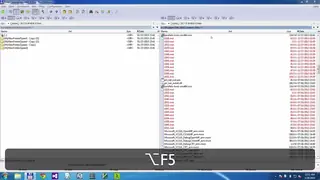
 Roy selects all files with the same extension as the current file with Alt and plus on the number keypad, and selects or deselects files by a pattern, such as names containing the letter T, with plus and minus on the keypad. Ctrl-B flattens the folder hierarchy to show all the files in all the subfolders, which he uses to select and zip files from many folders at once. Unlike selecting, which only highlights files, the show filters hide the files that do not match, such as Ctrl-F11 for executables or a custom filter with Ctrl-F12.
-
 Different File Colors Duration 1:30
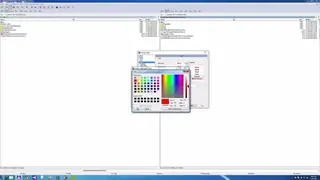
 Roy uses the colors page of the configuration options to define colors by file type, making all .config files red. With Ctrl-B flattening the folders, the config files are then easy to find, which he finds useful when many files share a name but have different extensions.
-
 Searching and 'Feed to Listbox' Duration 2:52
 Roy searches a folder for all .cs files with Alt-F7, and shows options to search inside archives, for text such as the word class, by date, for duplicate files and inside plugins, and to save and load searches. The feed to list box button (Alt-L) turns the results into a list of files, which he can select with Ctrl-A and zip with Alt-F5, or view one by one with Ctrl-Q.
-
 Advanced Multi File Rename Duration 2:15
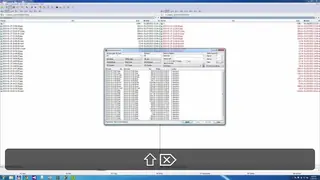
 Roy selects files with Ctrl-A and opens the multi-rename tool with Ctrl-M, where N stands for the current name of the file and the old and new names are shown before the rename runs. The last rename can be undone, and other options include a counter before or after the name, search and replace (such as changing 01 to January), and lower or upper case.
-
 Space Calculator and Copy Queues Duration 3:54
 Roy shows the size of all folders with Shift-Alt-Enter and sorts them by size, or the size of one folder by pressing Space on it. He copies a large folder with F5, follows the progress of the current file and the overall progress, and sends the copy to the background. Pressing F2 in the copy dialog adds a copy to the copy queue, so that copies run one after the other, and the queue also has a speed limit.
-
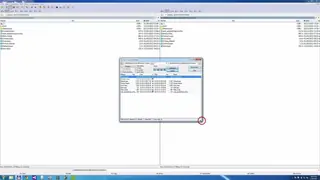 Copy in Place, Compare, Sync Folders Duration 3:36
 Roy copies a file in the same folder under a new name with Shift-F5, edits it and compares the two files by content, with options to ignore white space and case. He then compares a testing and a production directory with Mark, Compare directories, and synchronizes them with Commands, Synchronize directories, which shows what is different, duplicate or single on each side and what will be copied where. Shift-F4 creates a new text file and starts editing it.
Section 4
Other Features
This section uses the built-in FTP client, installs and uninstalls plugins of three types (packer, file system and Lister extensions), and splits a large file into smaller ones and combines them again.
-
 Working with FTP Duration 2:59
 Roy uses Total Commander's built-in FTP client to open a new connection to the GNU FTP site, browses it like a local file list and downloads the latest release of Nano with F5. He goes into the downloaded tar.gz file, views a file on the server with F3 (which downloads it to a cache), disconnects with Ctrl-Shift-F and saves the connection for later. He also mentions other network features, such as network connections, sharing directories and showing the admin shares.
-
 Plugins are Awesome Duration 5:56
 Roy describes three types of Total Commander plugins, starting with packer extensions, which let you treat file types that are not supported by default like folders. He downloads an MSI extension from a plugins page and installs it by going into its zip file, after which he can go into MSI files and copy files out of them. File system extensions let the panes browse things such as databases, Excel files and audio files, and Lister extensions add file types to the Ctrl-Q quick view, such as Flash files, images and CAD files. To uninstall an extension, he sets its file types to none in the packer extension settings of the configuration options.
-
 Splitting Large Files Duration 2:37
 Roy splits an ISO file into smaller files with Files, Split file, choosing the size of the parts and the target directory, without an external program. He moves the parts to a new folder with F6, using the star on the number keypad to reverse a selection, then selects the 001 file and uses Combine file, which also does a CRC check.